Operating Choir
For whoever runs this site: the admin page at /admin, provider keys, Stripe, invites and usage. Using Choir rather than running it? The help guide is for you.
/admin is for the site's operators. The first account, created with the site passcode as its invite, is the admin.
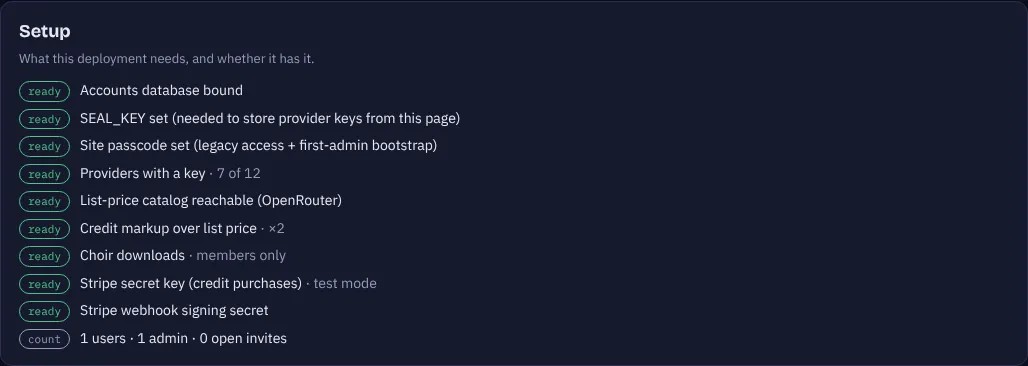
Setup
A checklist of what the deployment needs and whether it has it: the accounts database, the sealing key for stored provider keys, the site passcode, providers with a key, the list-price catalog, the credit markup, downloads, and the Stripe key and webhook secret, plus counts of users and open invites.
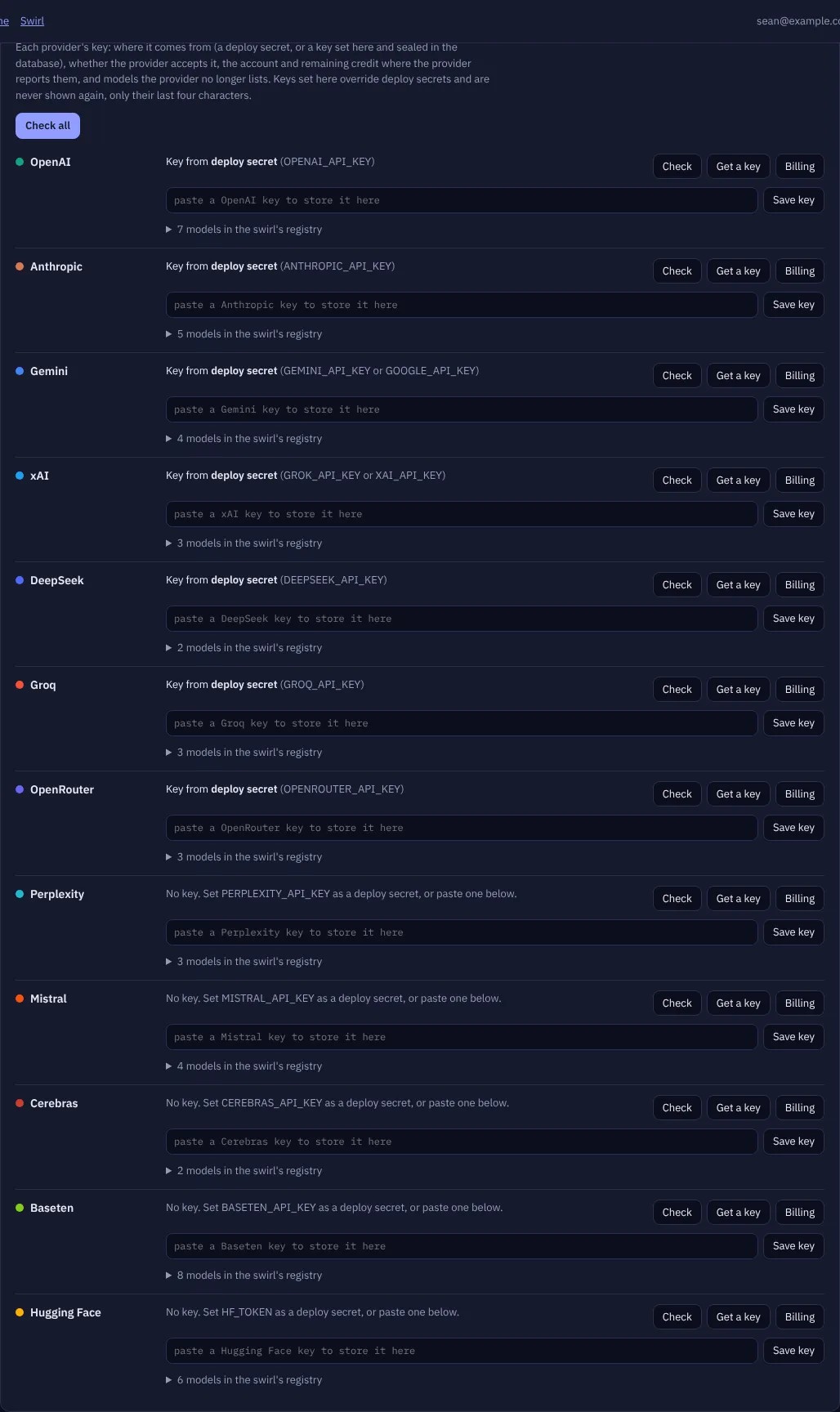
Provider accounts
Every provider is listed with:
- where its key comes from: a deploy secret, or a key saved here, which is sealed in the database and shown only by its last four characters;
- Check: whether the key works, plus the account and remaining credit where the provider reports them, and any models it no longer lists;
- Get a key and Billing links;
- a per-model test.
Check all checks every provider.
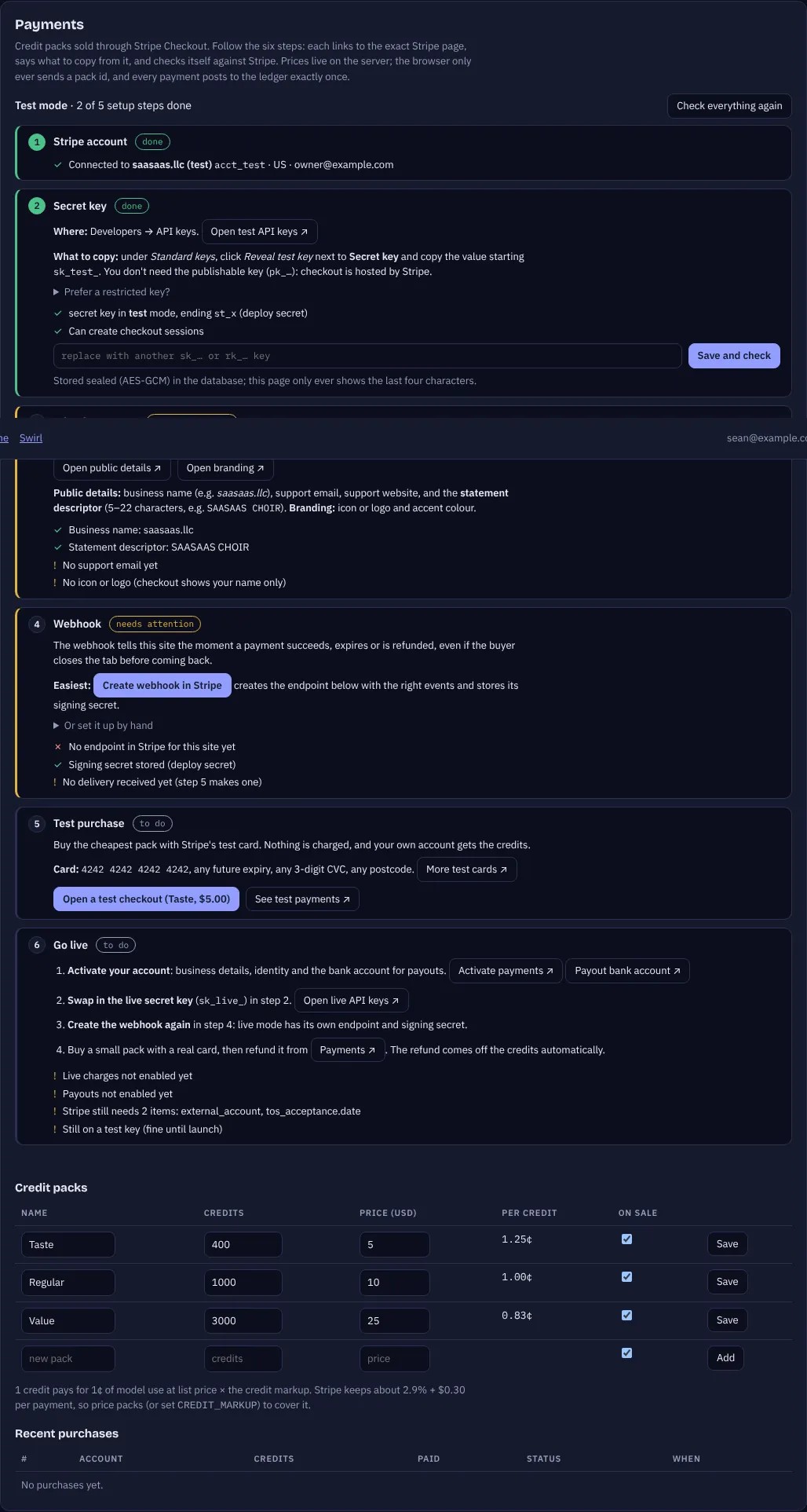
Payments (Stripe)
Six steps, each with a button to the exact Stripe dashboard page, what to copy from it, and live checks:
- Account: create or sign in to Stripe.
- Secret key: copy the
sk_test_…key from API keys and press Save and check (a restricted key with the listed permissions also works). - What buyers see: public business name, statement descriptor, support email, icon.
- Webhook: Create webhook in Stripe does it in one click and stores the signing secret, or set it up by hand with the URL and events shown.
- Test purchase: open a test checkout and pay with
4242 4242 4242 4242. - Go live: activate the account, swap in the
sk_live_key, and create the webhook again (live mode has its own).
Below the steps: the credit packs (edit name, credits, price, on sale) and recent purchases.
Invites, users and usage
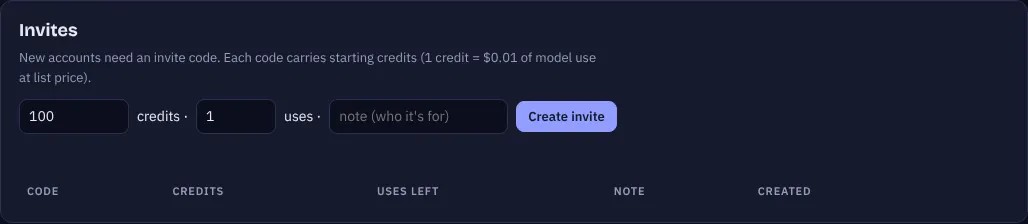
- Invites: create a code with starting credits and a number of uses, then copy it.
- Users: role, credits, spending and last sign-in for everyone, and a grant box to add credits (a negative number adjusts down).
- Usage: spending by model over the last 30 days.


Downloads
The Mac app's disk images only download for signed-in accounts (or for everyone, with PUBLIC_DOWNLOADS=1); without an account a browser is sent to sign in. Each download is recorded, and Admin → Downloads lists everyone who downloaded, with the versions they got, so you can reach them about a build: Copy all emails, Email everyone (opens your mail app with them in Bcc) or Download CSV. Recording began on Nov 3, 2026; downloads before that were not logged.