How to use Choir
Ask one question to many AI models at once, watch them stream side by side, see where they agree and where they split, and carry the best answers into your next question. Then make art across several image models with the same prompt. This guide walks through every path, with screenshots from the live site.
StartWhat Choir is
Choir has two workspaces, both at /swirl:
- Swirl: chat with a panel of language models (OpenAI, Anthropic, Google, xAI, DeepSeek, Groq, OpenRouter and more). Every model answers the same question at once. A judge model scores each answer, writes a synthesis, and groups the answers by their bottom line. The map shows it all; you choose which answers ride into the next question.
- Collider: an art bench. Vision models break a reference image into prompt pieces, bibles keep a style or a character consistent, and one prompt renders across several image models side by side.
Model keys live on the server and never reach your browser. Which services receive your question, its context and your files is spelled out in Where your data goes; in short, the models you pick, plus a judge and, for a few helper actions, a rewriting model. Choir is also a free desktop app for macOS that runs with your own API keys; signed-in members can download it from the home page.
StartGetting in
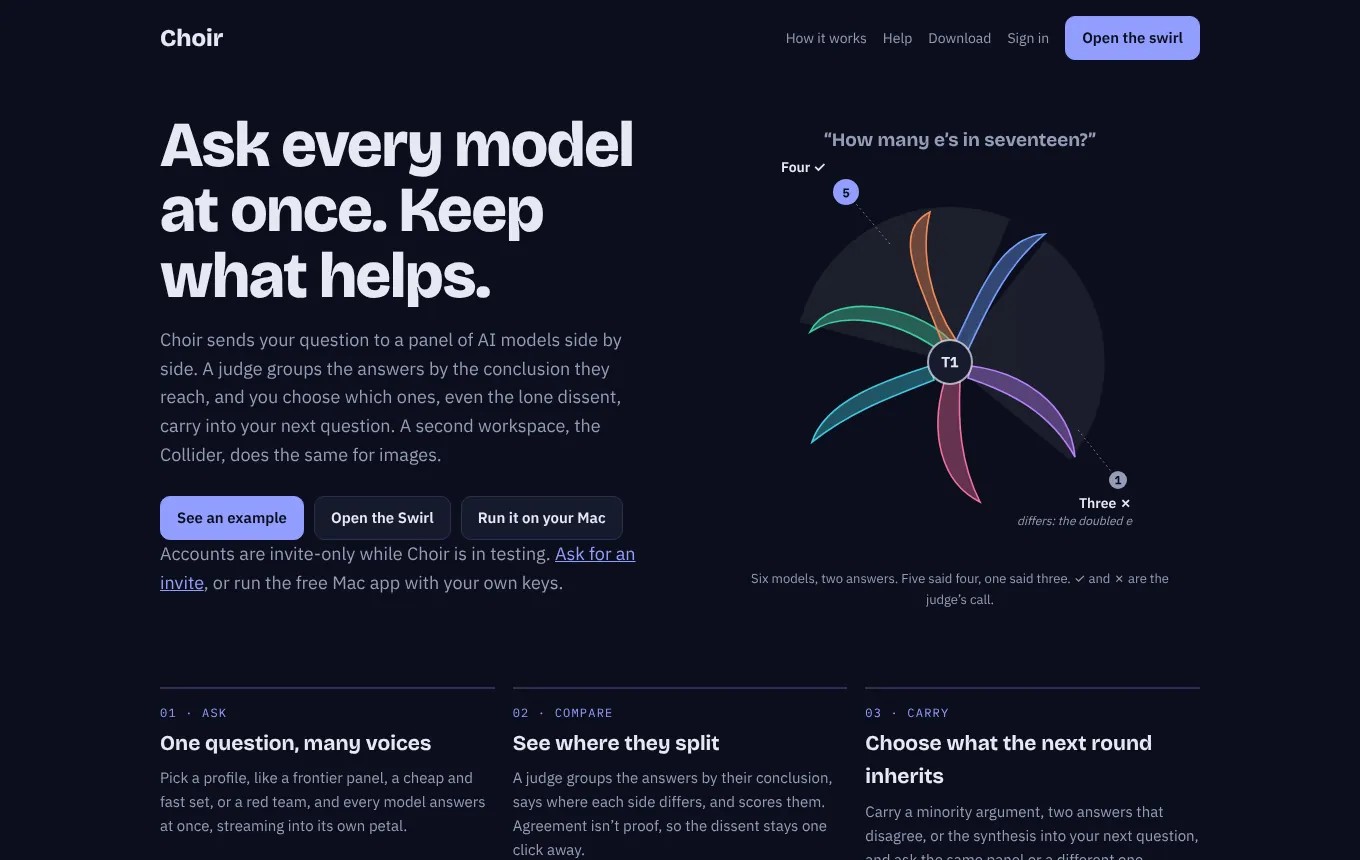
The home page explains Choir and links to the Swirl, the Collider and (for members) the desktop app downloads.
Create an account
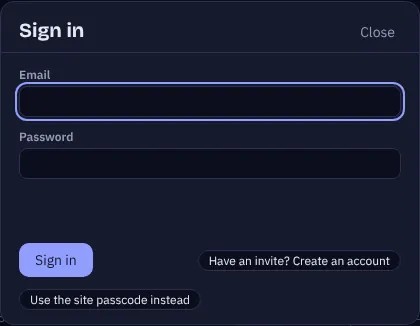
Accounts are invite-only while Choir is in testing. Each invite carries starting credits.
- Open /swirl and press Sign in in the top bar.
- Choose Create account, enter your email, a password of 10 or more characters, and the invite code you were given.
- You're signed in. Your name and balance appear in the top bar; click it for your account.
SwirlThe screen
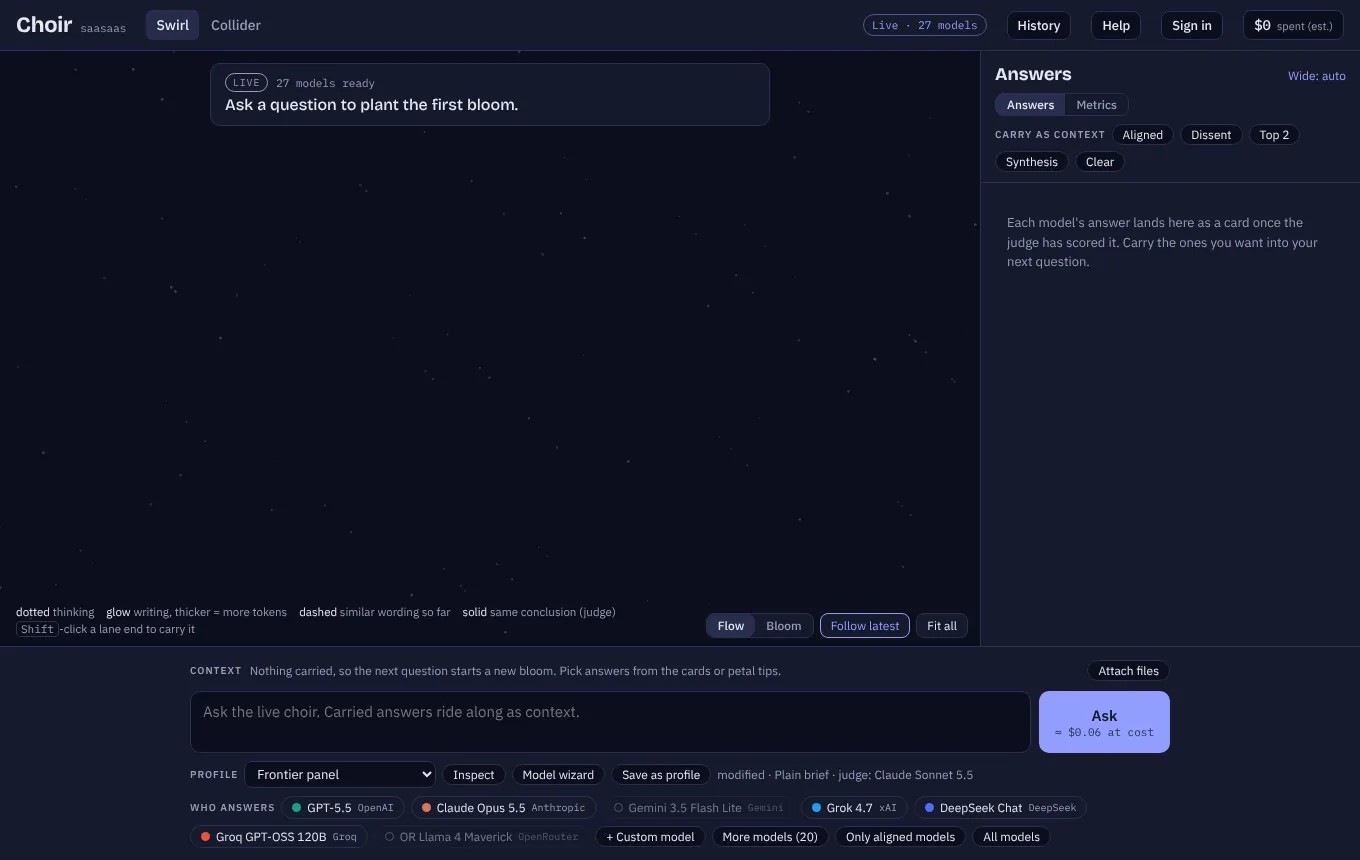
- Top bar: Swirl and Collider tabs, History, Admin (admins only), and your account and credits (or, without an account, an estimate of what this session has spent).
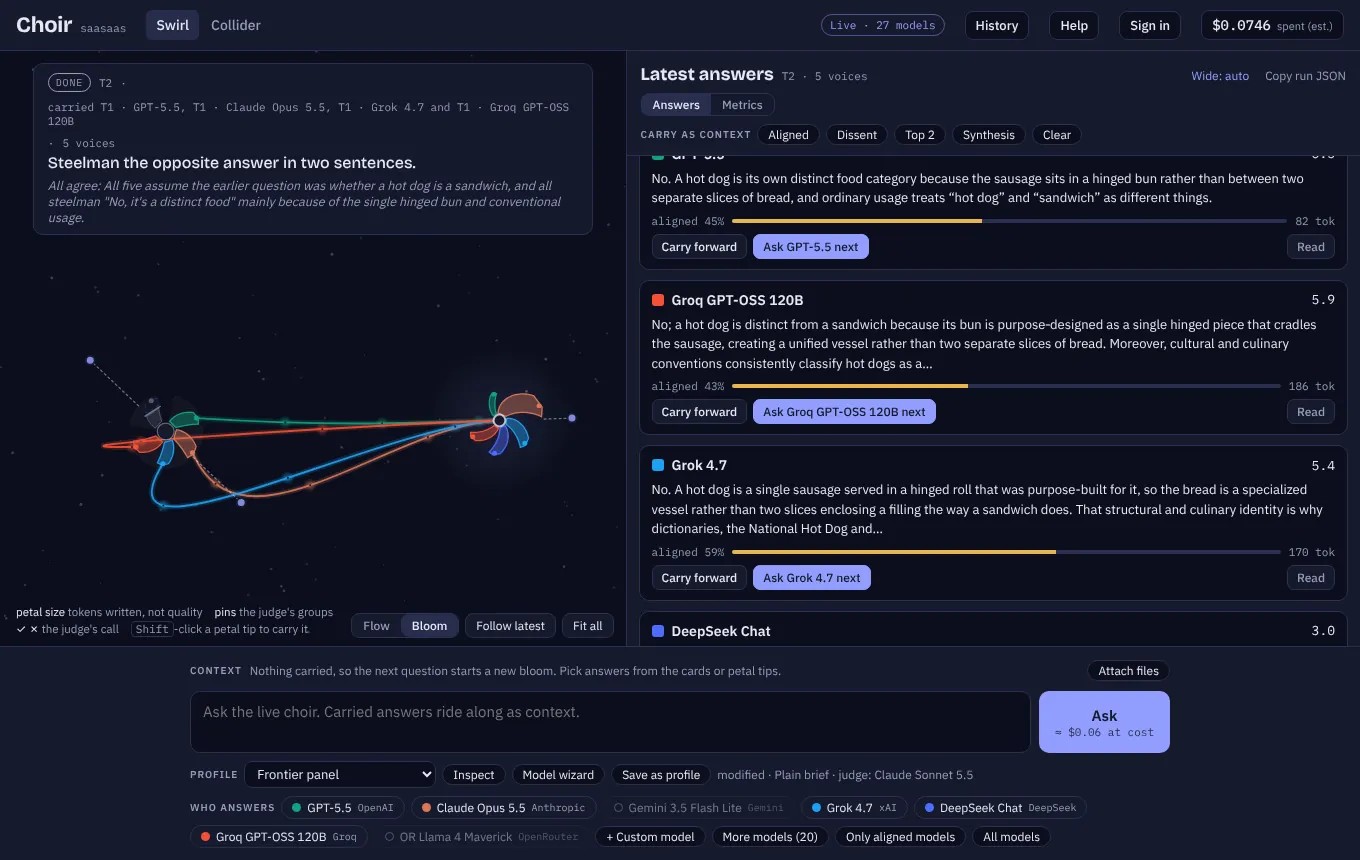
- Map (left): every question you ask becomes a row; each model is a lane. More in Map controls.
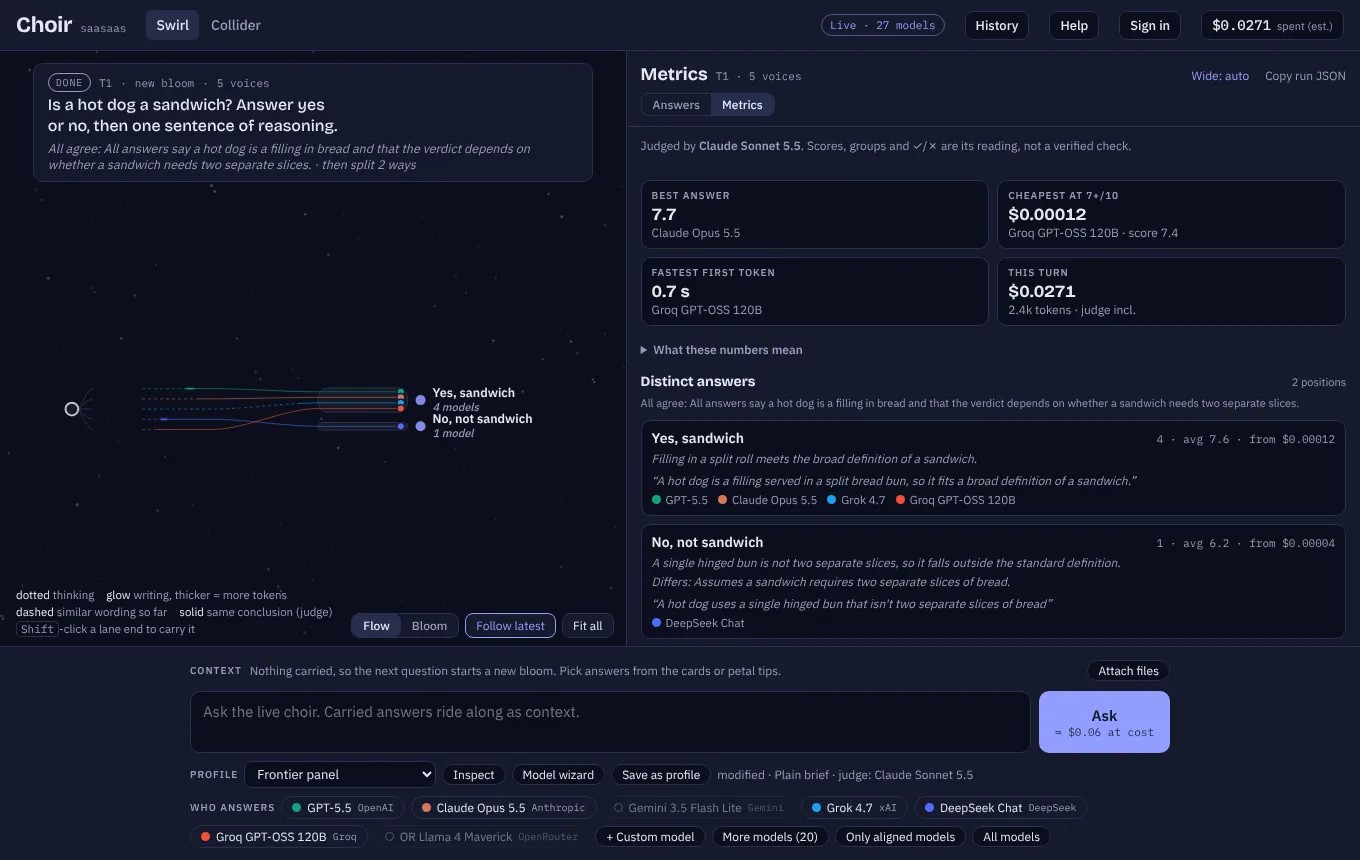
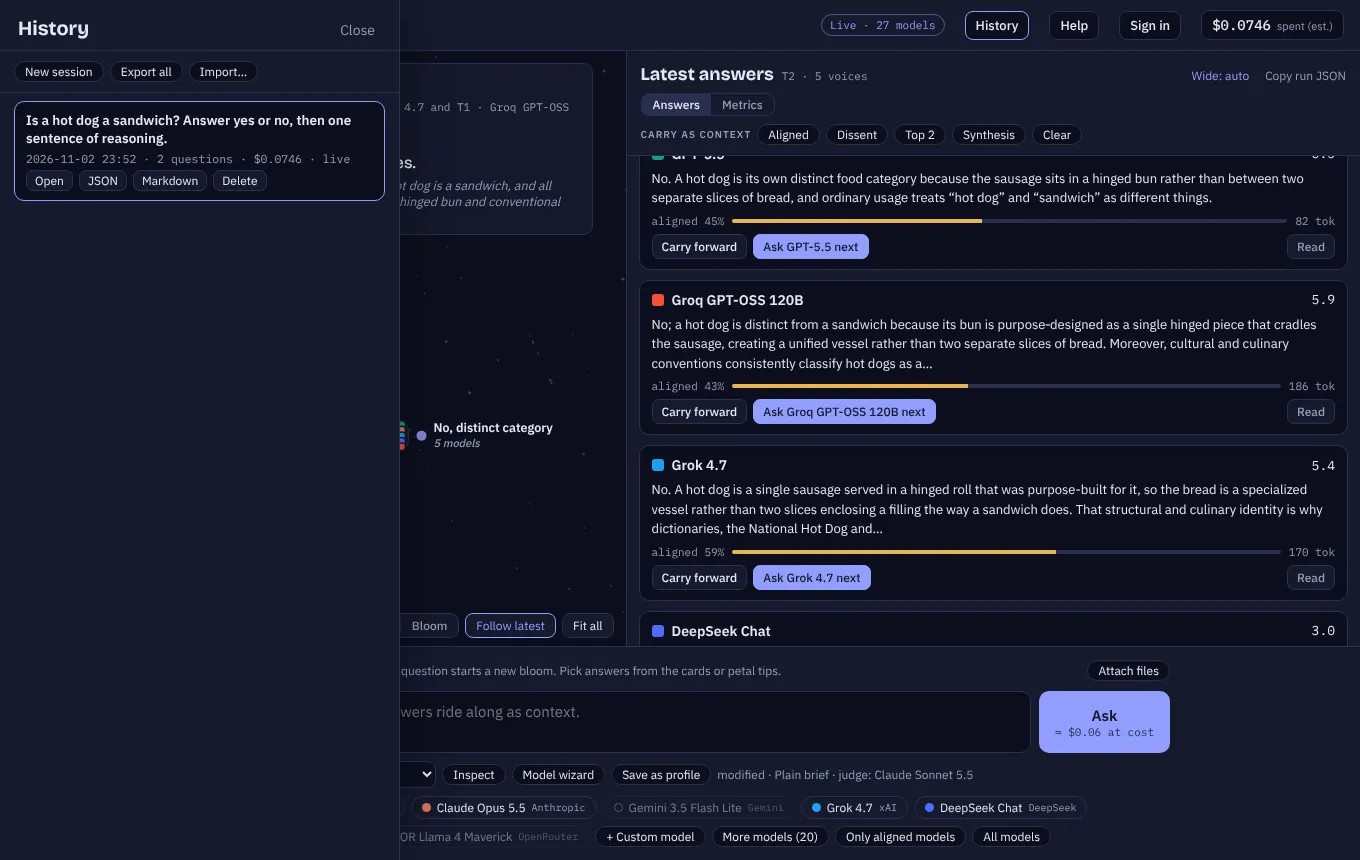
- Question card (top of the map): the current question, its status (streaming, judging, done), what it carried, and the line every answer agreed on.
- Answers panel (right): the synthesis and one card per model, plus the Metrics tab.
- Composer (bottom): what you're carrying, attached files, the question box, the Profile row and the Ask row of models.
SwirlAsk a question
- Pick who answers. Choose a profile from the Profile menu (Frontier panel, Quick & cheap, Red team, Careful reasoning, Fact check, Claude ladder, Open weights, Three minds one model, Temperature sweep, or your own), or toggle models in the Ask row. More models shows every model with a key; up to 24 can answer at once.
- Type your question in the box. The Ask button shows what it will likely cost (“≈ 4 cr”: medium-length answers plus the judge) and what it holds while it runs (the worst case: long answers and a long judgment), both in credits for an account, or as dollars at cost with the passcode.
- Press Ask (or Enter; Shift+Enter for a new line).

Watching it stream
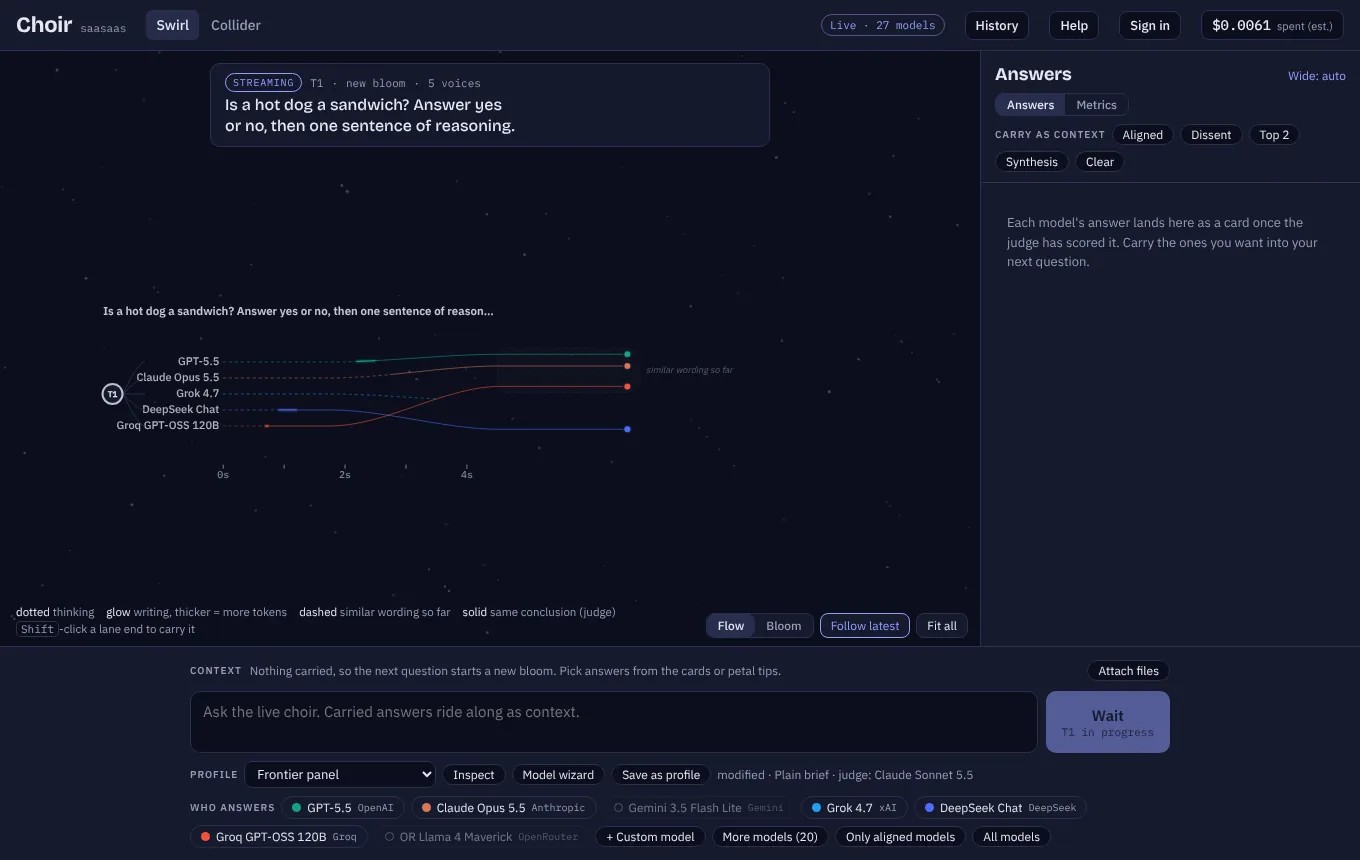
Each model gets a lane, and left to right is time:
- A dotted line means the model is thinking (time to first token).
- A glowing line means it's writing; thicker means more tokens.
- While answers stream, lanes whose answers use similar words drift toward each other and a dashed box marks them “similar wording so far”. That is only wording: “deploy now” and “do not deploy now” look alike. Conclusions come from the judge, at the end.
- Short previews of each answer float beside the lanes.
When it's judged
The judge (Claude Sonnet by default, falling back to the next provider if it's busy) reads every answer and then:
- scores each one from 0 to 10;
- writes a synthesis: the best combined answer;
- names the line every answer agrees on (shown under the question);
- groups the answers by their bottom line. On the map, each group becomes a solid corral with the answer, how many models gave it and how it differs from the others. A ✓ or ✗ appears only when the judge thinks the question has one checkable answer; it is the judge's own call, not an external check, and the label says so.
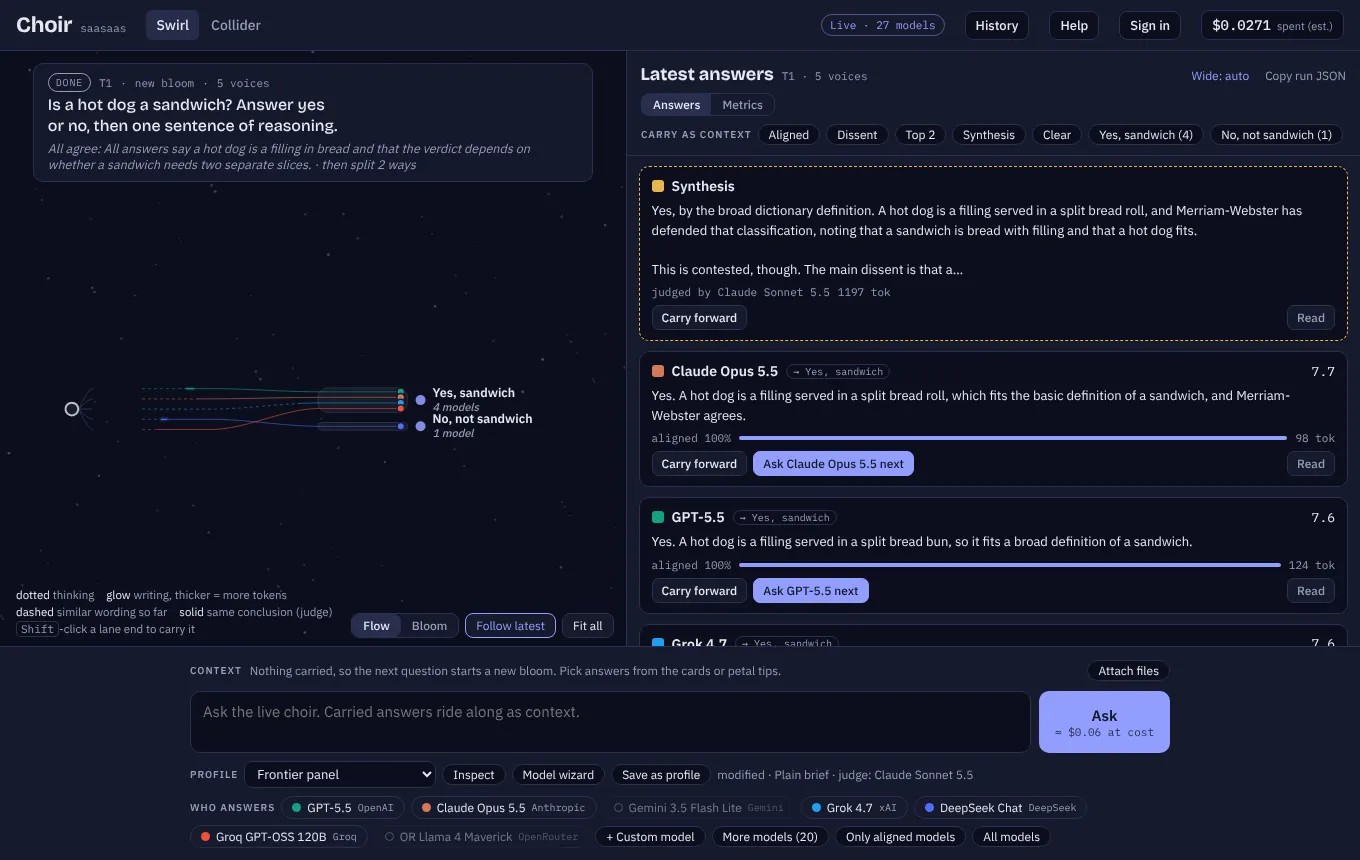
SwirlRead the answers
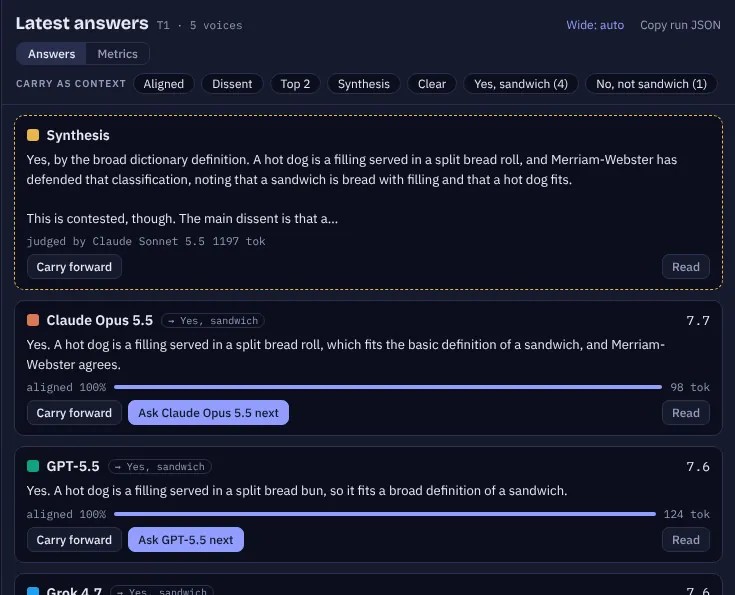
The answers panel lists the Synthesis first, then one card per model, best score first. Each card shows:
- the model, its score, and a tag naming the group it landed in (for example
→ Yes, sandwich); - the start of the answer;
- aligned: how closely it matches the synthesis (or, when answers split, the biggest group), with its token count;
- Carry forward, Ask … next (put this model in the next question) and Read.
The reader: flip and compare
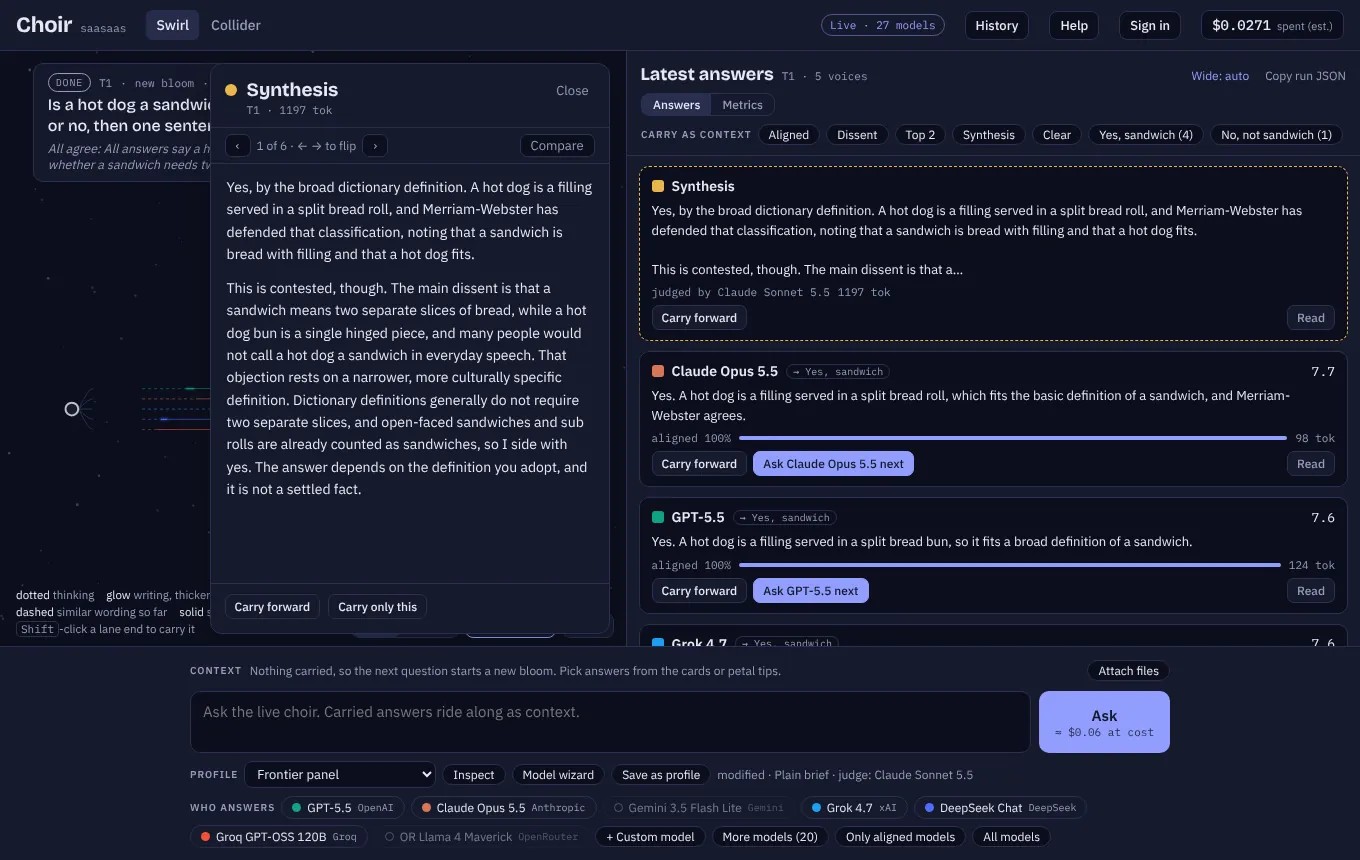
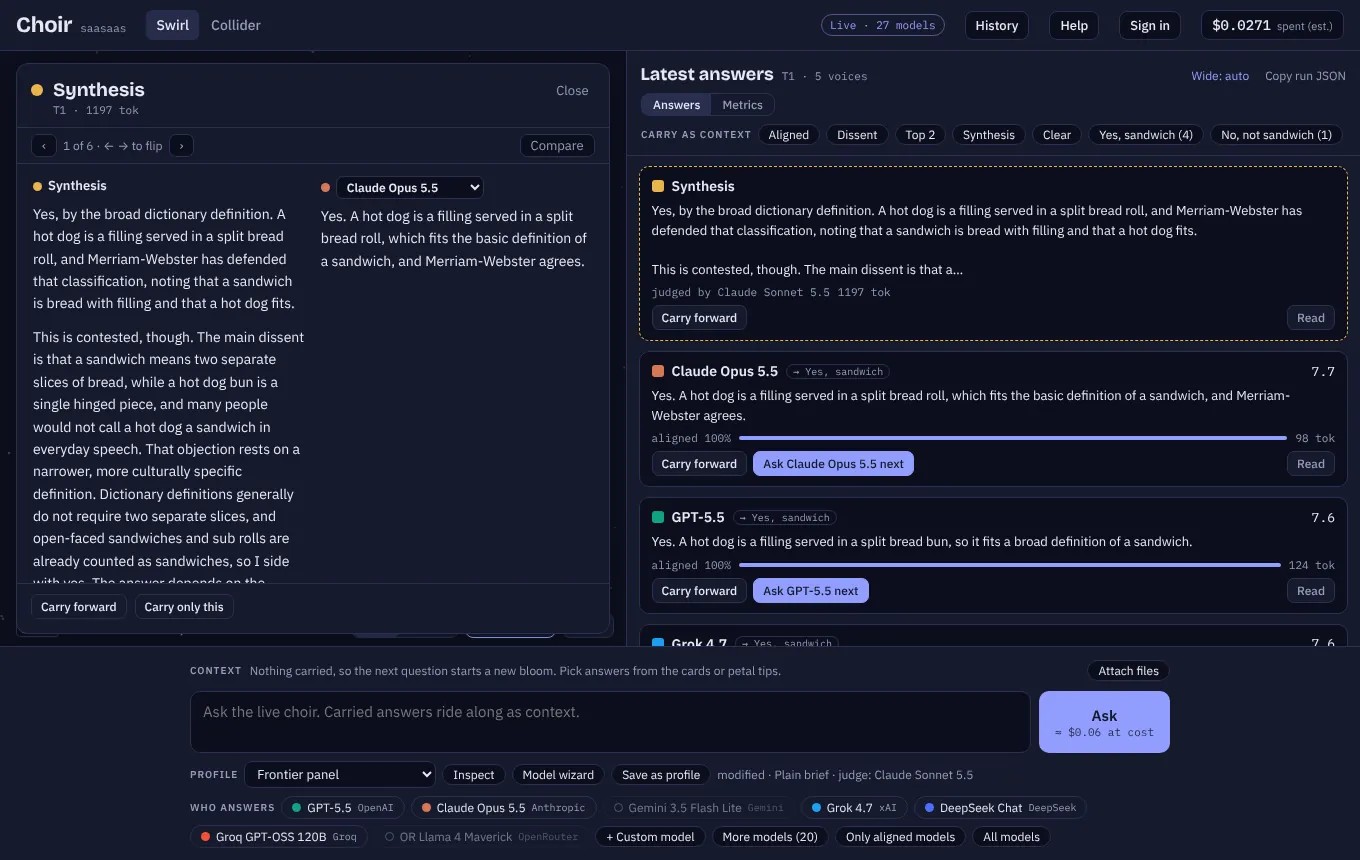
Read opens the full answer. Use ← → (or the arrows) to flip through every answer in the turn. Compare shows two answers side by side; pick the second from its menu.
Copy run JSON (top of the panel) copies the turn in the Choir app's run format, which the Choir CLI (choir runs import-folder) and the choir-reports scripts read as-is.
SwirlMetrics
The Metrics tab measures the turn:
- Who judged: the judge model, and any that failed before it.
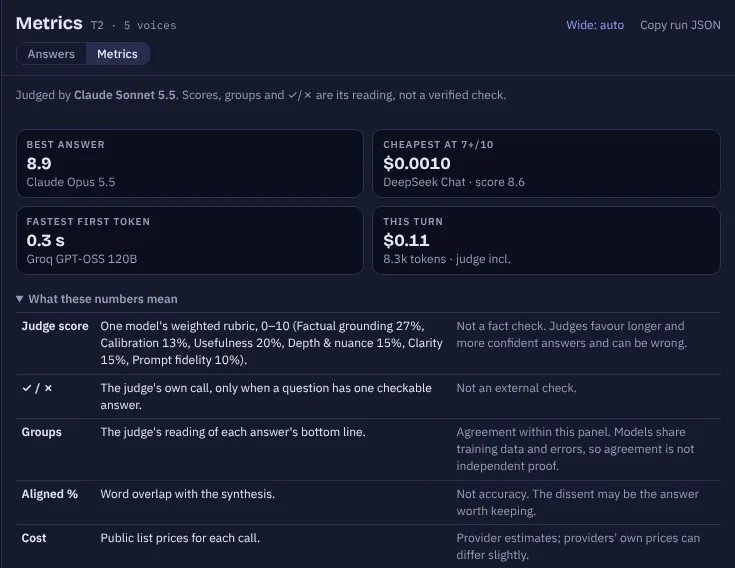
- Best answer, cheapest at 7+/10 (the cheapest answer the judge scored at least 7; if none did, it says so), fastest first token, and what this turn cost, judge included.
- What these numbers mean: a short key separating the judge's score, its ✓/✗ call, agreement between models, word alignment and cost, and what each one does not establish. Models share training data and make correlated mistakes, so agreement is not independent proof; the dissent may be the answer worth keeping.
- Distinct answers: each group with its members, average score, how it differs, a short quote from one member that shows the shared conclusion, and the cheapest model that gave it.
- Cheapest route: the best answer, the cheapest that clears 7/10, the cheapest within half a point of the best, the best value and the fastest near the top.
- Attractors: a radar of 3–5 axes the judge found where the answers pull apart (switch to Rubric for the six scoring criteria).
- Bars for each model's generation speed, output tokens and estimated cost (Table view for the numbers), and after two questions a session leaderboard.
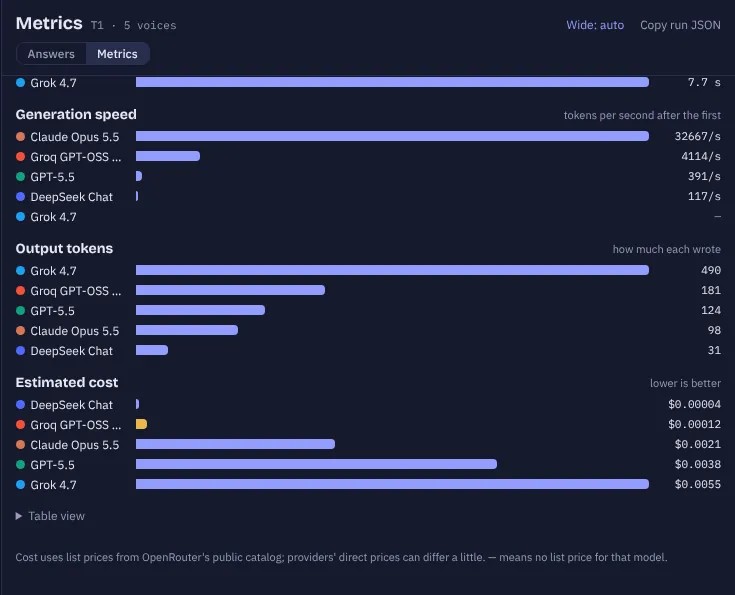
Costs use public list prices (from OpenRouter's catalog); a provider's own price can differ slightly. In a panel of perspectives (voices with assigned roles, like the skeptic and the newcomer), each voice is scored against its own assignment, Metrics says so at the top, and the cheapest route is skipped: comparing a skeptic's price with an optimist's says nothing about the models.
SwirlCarry forward and fork
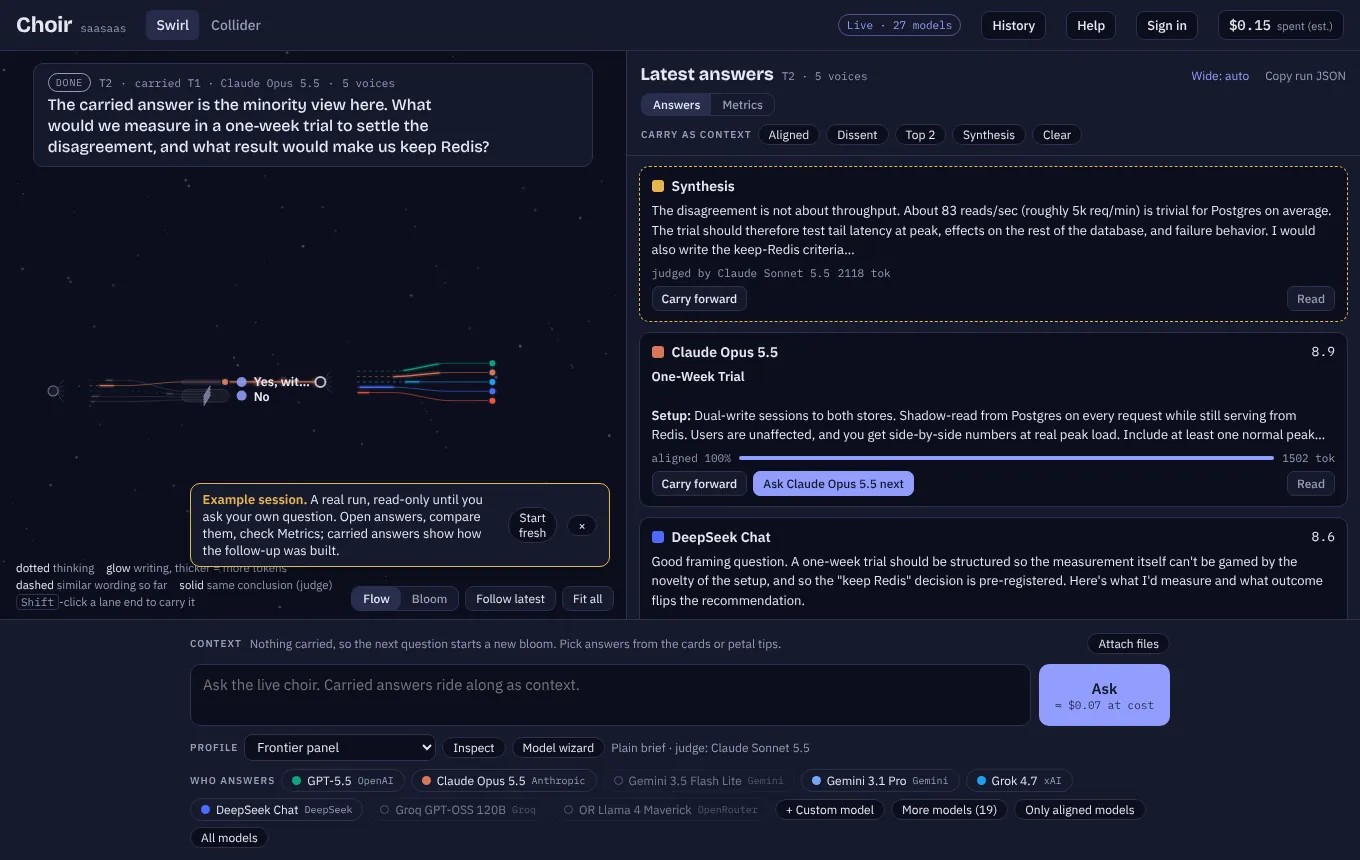
Two choices shape the next question, and they are separate: which earlier answers ride along as context (the Carry as context row and the cards), and which models answer (the Who answers row at the bottom). You can carry a skeptical answer into a round with different models, or carry two conflicting answers back to the same panel and ask what evidence would settle it.
Nothing carries by default: a question with an empty context tray starts a fresh row on the map. To continue from earlier answers, pick them first:
- Carry as context above the cards: Aligned, Dissent, Top 2, Synthesis, or a whole group (Yes, sandwich (4)). Clear empties the tray.
- Carry forward on any card or in the reader; Carry only this replaces the tray.
- On the map, click a lane's end for its card, or Shift-click it to carry it.
Carried answers appear as chips in the context tray and ride along as context; models you didn't carry from are cut on the map.

SwirlMap controls
- Flow (default): rows over time; lanes coalesce into corrals.
- Bloom: the radial view, petals sized by tokens, grouped by answer, with pins naming each answer. Your choice is remembered.
- Follow latest keeps the newest question in view; Fit all zooms out to the whole session.
- The line under the map is a legend for the view you're in: in Flow, dotted means thinking, glow means writing (thicker means more tokens), a dashed box is similar wording so far and a solid box is a shared conclusion; in Bloom, petal size is tokens written, not quality.
- Wide (top of the answers panel) gives the answers more room once you're reading. On auto it widens by itself when a question is judged; click to pin it wide, again for narrow, and again for auto.
- Drag to pan, scroll to zoom.
SwirlProfiles and the model wizard
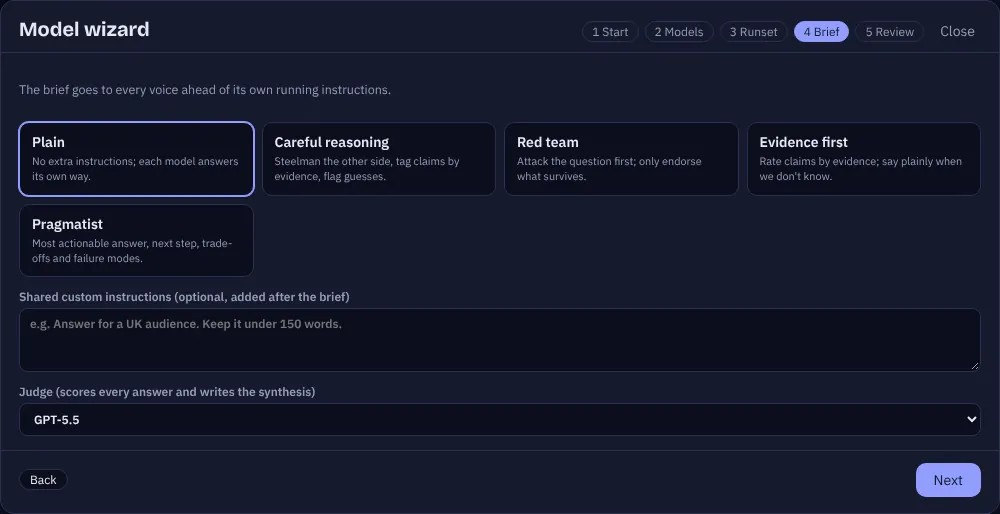
A profile is a saved panel: which models answer, a brief they all get (Plain, Careful reasoning, Red team, Evidence first, Pragmatist), optional shared instructions, and a judge. Profiles are kept in your browser and, when you're signed in, synced to your account.
Inspect a profile
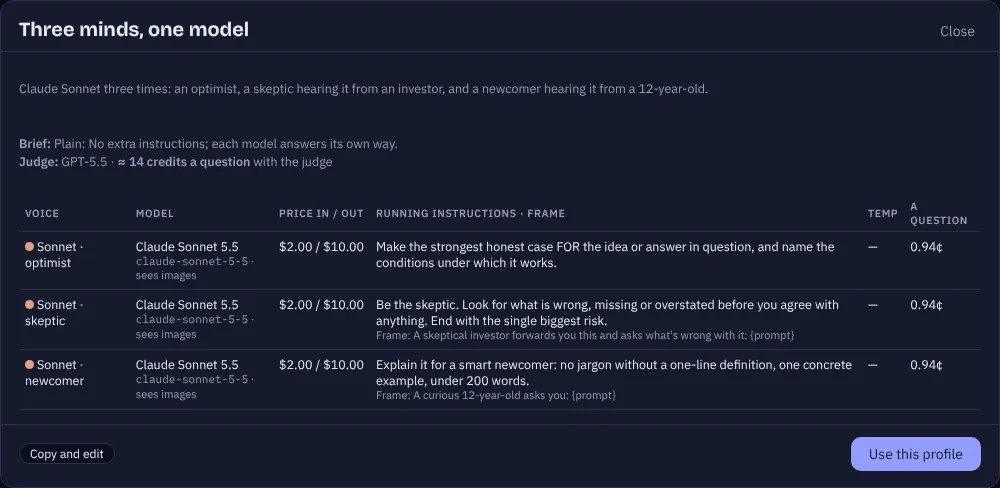
Inspect shows every voice in the selected profile: the model, its price, context window, image support, its own instructions and frame, and an estimate of what a question costs.
The model wizard
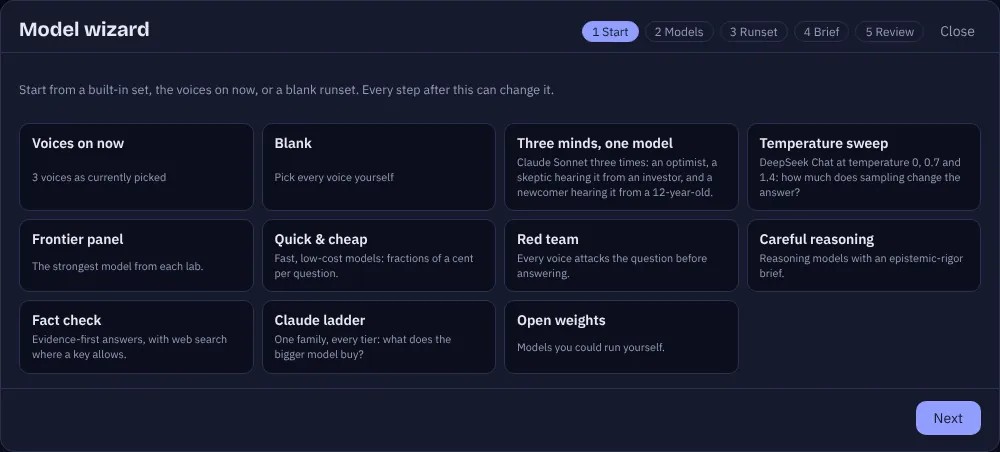
Model wizard builds a profile in five steps.
- Start: from a built-in profile, the models on now, or blank.
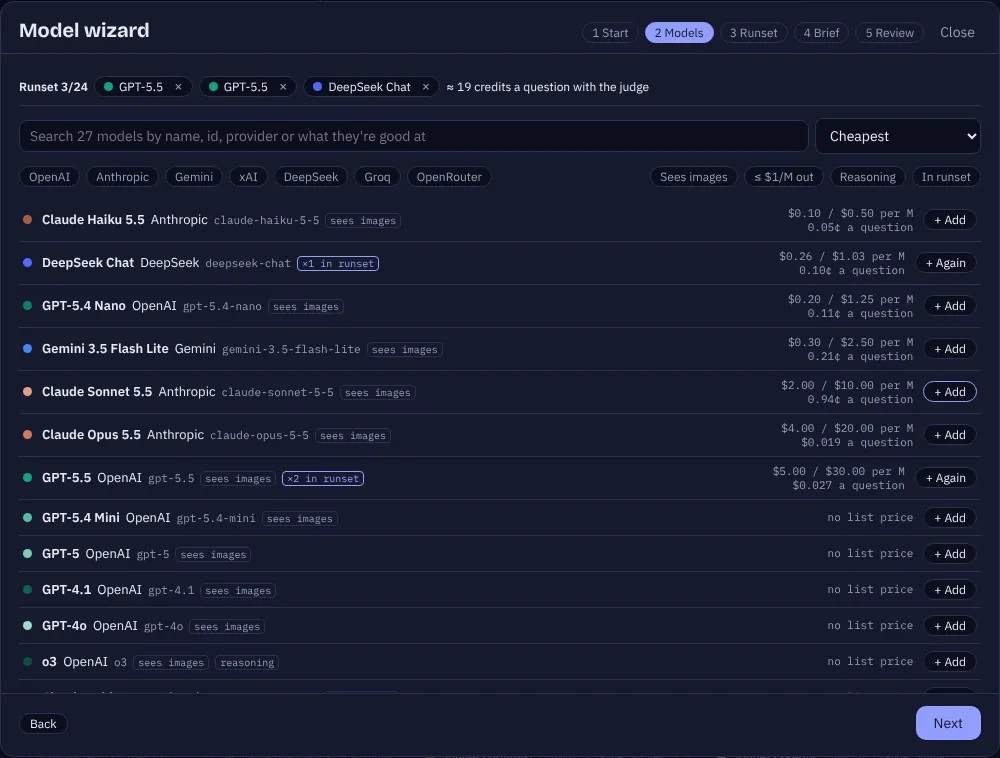
- Models: search by name, id, provider or what a model is good at; filter by provider, Sees images, ≤ $1/M out, Reasoning or In runset; sort by price or context window. Each row shows list prices per million tokens, an estimated cost per question, context, image support and a one-line description. + Add puts a model in your runset; + Again adds another copy of it.
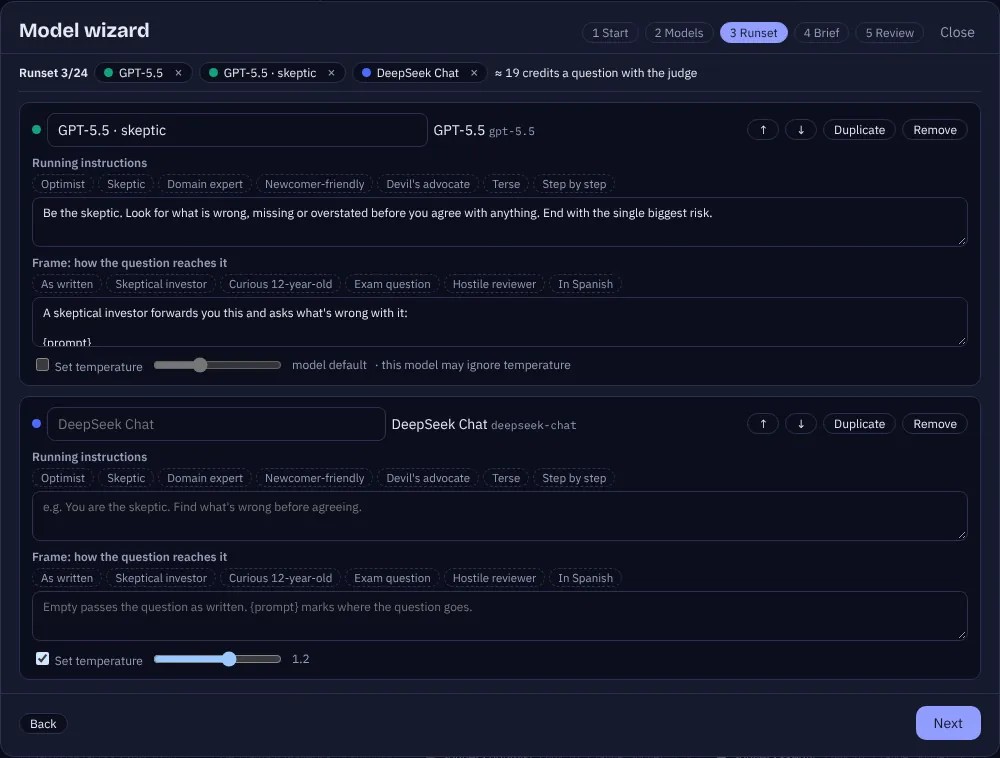
- Runset: give each voice its own setup.
- Name: how it appears on the map and cards.
- Running instructions: extra system instructions just for this voice (presets: Optimist, Skeptic, Domain expert, Newcomer-friendly, Devil's advocate, Terse, Step by step).
- Frame: how the question reaches it, as a template where
{prompt}stands for your question (presets: As written, Skeptical investor, Curious 12-year-old, Exam question, Hostile reviewer, In Spanish). - Temperature: tick to set one (some reasoning models ignore it).
- Reorder, Duplicate or Remove. Quick build adds an optimist / skeptic / newcomer trio, or a temperature sweep, from any one model.
- Brief: the shared brief, shared custom instructions, and the judge.
- Review: name it, describe it, check the table of voices and the cost per question (judge included), and Save profile.
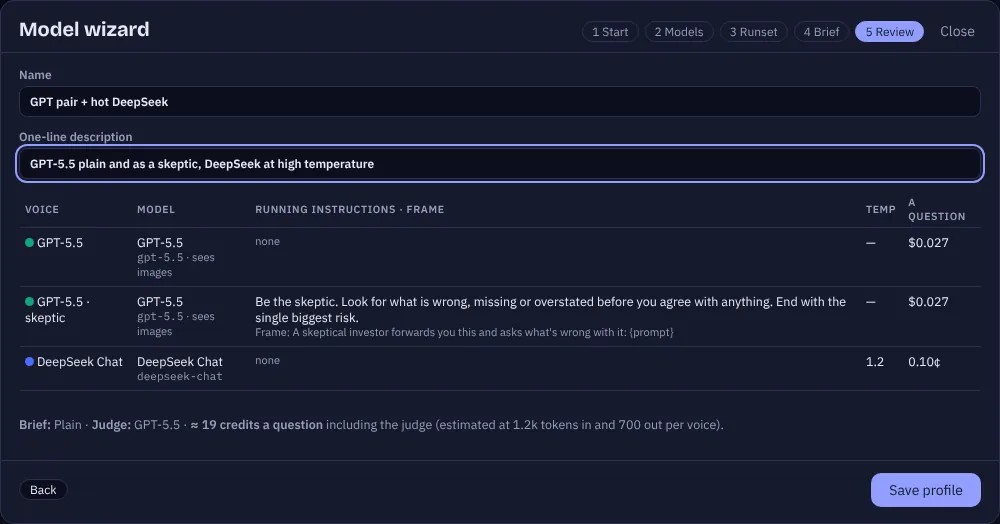

A runset of voices with different instructions or frames is a panel of perspectives, not a model comparison: the judge is shown each voice's assignment and scores it against that, so a skeptic isn't marked down for being skeptical. To compare models, give every copy the same setup.
Change the selected models by hand and the profile shows modified; Save as profile keeps that as a new one. Your own profiles have Edit, and the last wizard step has Delete this profile.
A model that isn't listed
+ Custom model in the Ask row takes any model id on a provider that has a key, for models newer than the list. If the provider doesn't know the id, that lane says so.

SwirlAttach files
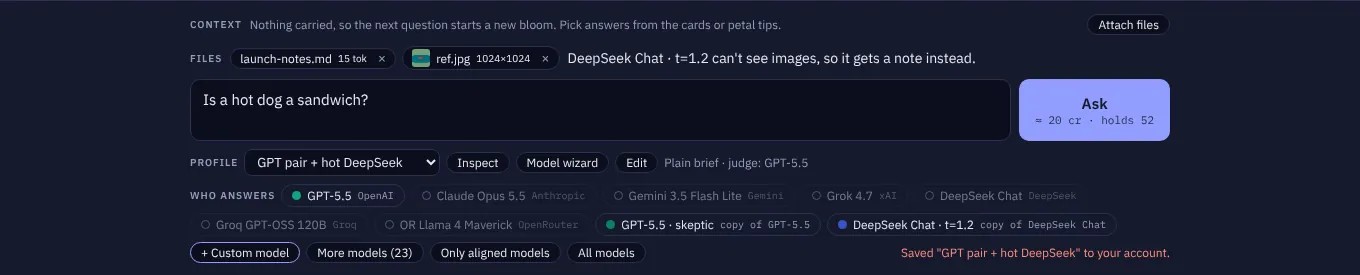
Attach files (or drop files on the composer, or paste an image into the question box) adds files to the next question only.
- Text, code, CSV, JSON, Markdown go to every model, ahead of your question.
- PDFs are read in your browser; their text layer goes along. A scanned PDF with no text layer can't be read; attach page images instead.
- Images go to the models that can see (22 of the 27 here). The others get a note saying an image was attached that they can't see. Images are redrawn in your browser first, which drops location and other metadata and caps the size at 1600 px.
- Limits: 8 files, 4 images and 400,000 characters per question.
SwirlHistory and export
Every finished question saves the whole session in your browser. History opens the list:
- Open a past session (the current one is saved first), or Delete it.
- JSON exports a session with each turn's Choir run JSON; Markdown exports a readable transcript.
- Export all and Import… move your history between browsers.
- New session starts a clean map.
ColliderOverview
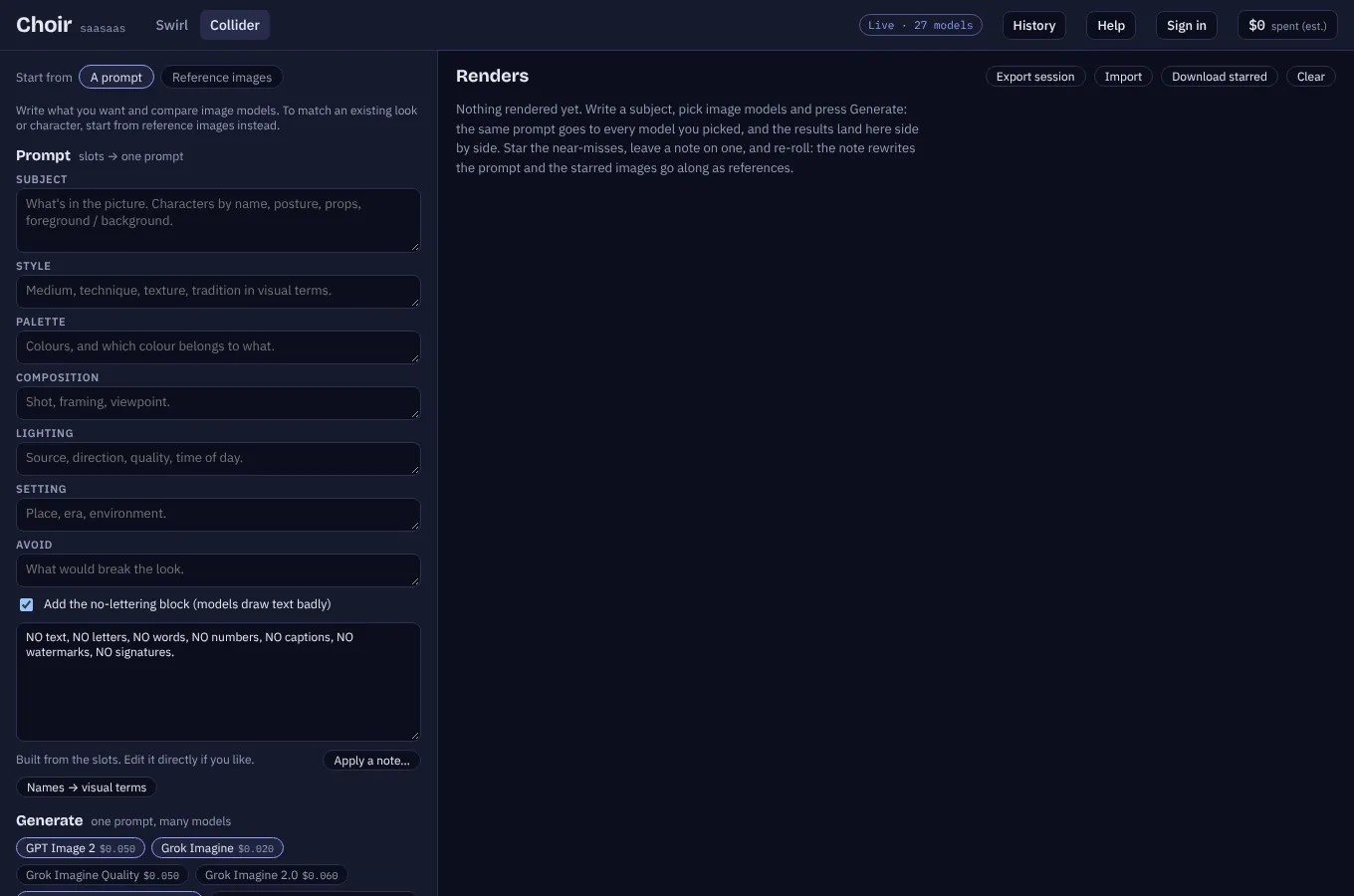
Open the Collider tab (or go to /swirl#collider). At the top, choose how to start:
- A prompt: just write what you want and compare image models. The prompt and the models come first; bibles are below if you want them.
- Image + prompt: paste an image (Ctrl/⌘+V anywhere on the tab), drop it or pick it, then say what to make of it (“Recreate this as a graduation, for dogs!”). Up to four images go, with your words exactly as typed, to every image model you pick; click ★ on an image to leave it out. Pasting an image while in A prompt switches here by itself.
- Reference images: start from pictures you want to match. All five steps show, starting with the inputs.
Renders land on the right, newest first.
The method comes from earlier projects: keep the subject, the style and the cast apart; attach reference images rather than describe a style in words; and iterate by starring near-misses and leaving notes.
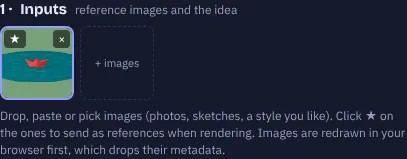
Collider1 · Inputs
Drop, paste or pick images: a photo, a sketch, a style you like. Click ★ on the ones to send as references when rendering; × removes one. Images are redrawn in your browser first, which drops their metadata.
Collider2 · Break it down
Pick vision models (Claude Sonnet, GPT-5.5 and Grok 4.7 to start) and press Break down the inputs. Each model reads the images and returns their prompt mechanics:
- Subject: what's in the picture, with no style words.
- Style: medium, technique, texture and tradition, in plain visual terms.
- Palette: colours, and which colour belongs to what.
- Composition, lighting, lens, mood and setting.
- Characters, each with a one-line description to reuse.
- Any lettering in the image, what to avoid, and a full prompt that would recreate the image.
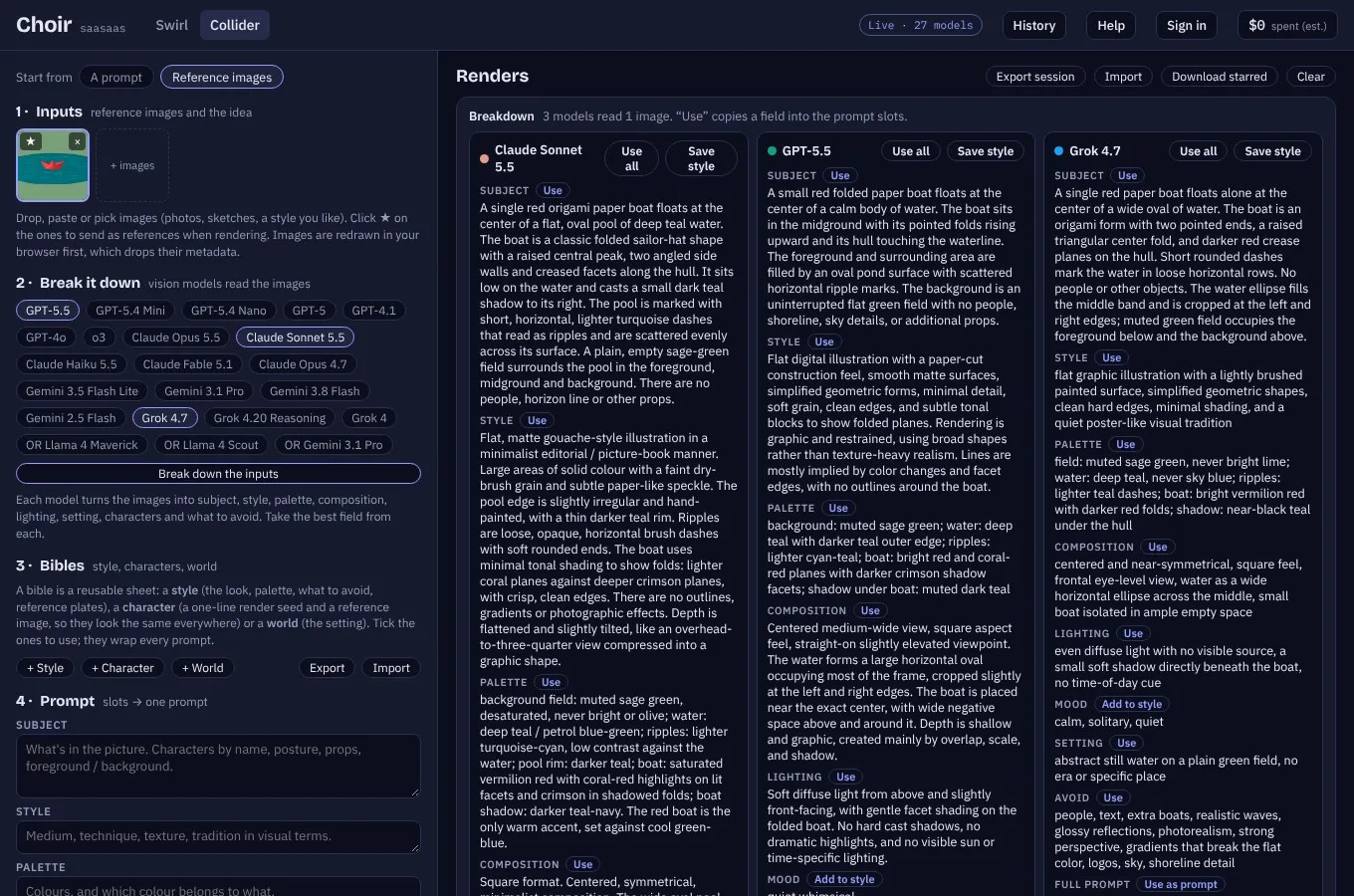
On each model's column:
- Use copies a field into the prompt slots, and Use all copies them all.
- Use as prompt takes that model's full prompt as-is.
- Save style makes a style bible from the column.
- Save as character makes a character bible.

Collider3 · Bibles
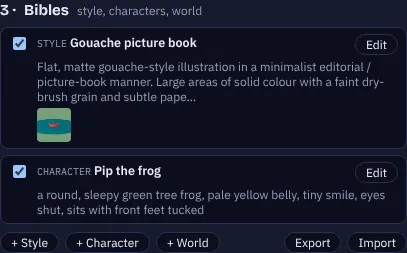
A bible is a reusable sheet that wraps every prompt while it's ticked:
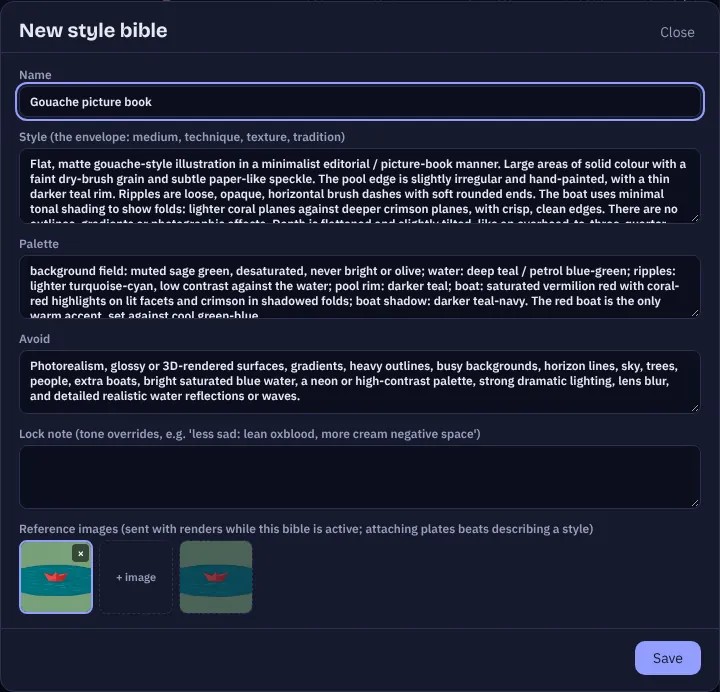
- Style: the look (medium, technique, texture), a palette, what to avoid, and a lock note for tone overrides (for example “less sad: lean oxblood, more cream negative space”).
- Character: a name and a one-line render seed (age, build, skin, hair, eyes, wardrobe, tells), so they look the same everywhere.
- World: the setting.
Each bible can hold up to four reference images, which are sent with renders while it's active. Attaching plates keeps a style far better than describing it.
Collider4 · Prompt
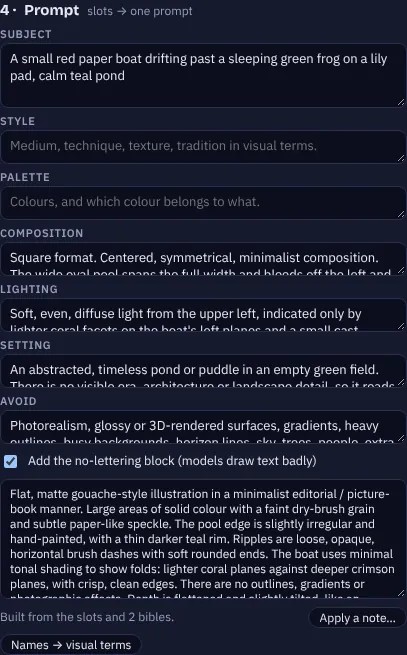
The slots (subject, style, palette, composition, lighting, setting, avoid) and your active bibles are assembled into one prompt, in this order:
- style
- palette
- composition and lighting
- lock notes
- recurring cast
- setting
- subject
- avoid
- the no-lettering block: models draw text badly, so it's on unless you want lettering.
- Edit the final prompt directly; it then stops following the slots until Back to the slots.
- Apply a note… asks a text model to change only what your note says (“warmer light, bigger grin”).
- Names → visual terms replaces artist, studio and brand names with visual descriptions. Some image models (OpenAI's especially) refuse prompts that name them.
Collider5 · Generate
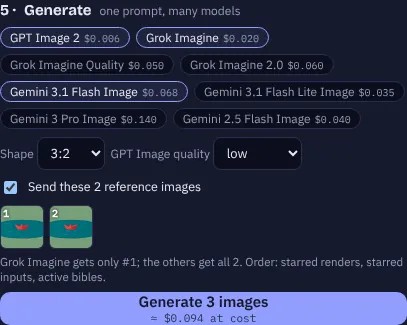
Pick image models, a shape (1:1, 3:2, 2:3, 16:9, 9:16, 4:3, 3:4) and, for GPT Image, a quality. Leave Send reference images ticked to include up to four references: starred renders first, then starred inputs, then active bibles' plates. Thumbnails under the checkbox show exactly which images go, numbered, and which models take only #1, so two renders that differ because they got different references are easy to spot. The button shows the estimated cost.
| Model | Good for | About per image | References |
|---|---|---|---|
| GPT Image 2 | Long prompts, layout, lettering; quality low / medium / high | $0.006 / $0.05 / $0.20 | up to 4 |
| Grok Imagine | Fast and cheap; comics, sketch, crayon | $0.02 | 1 |
| Grok Imagine Quality | Slower, more detailed | $0.05 | 1 |
| Grok Imagine 2.0 | The newest Imagine model | $0.06 | 1 |
| Gemini 3.1 Flash Image | Keeping a character or house style from references | $0.07 | up to 4 |
| Gemini 3.1 Flash Lite Image | The cheap Gemini | $0.035 | up to 4 |
| Gemini 3 Pro Image | The most careful Gemini; slower | $0.14 | up to 4 |
| Gemini 2.5 Flash Image | The original “nano banana” | $0.04 | up to 4 |
These are provider prices; signed-in accounts pay them in credits at the site's rate (see Credits). Each render is charged what the provider actually billed; a failed or refused render costs nothing.
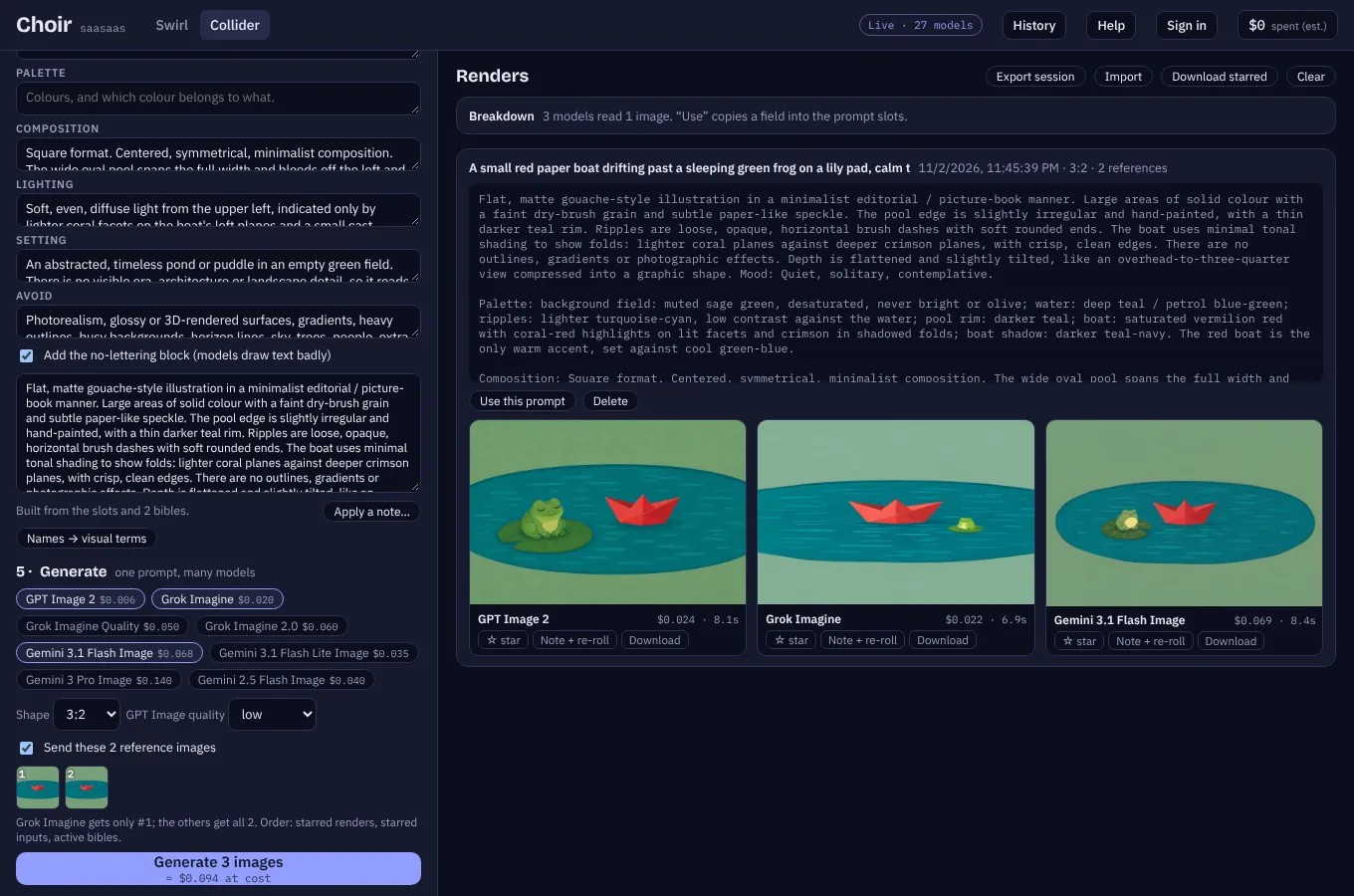
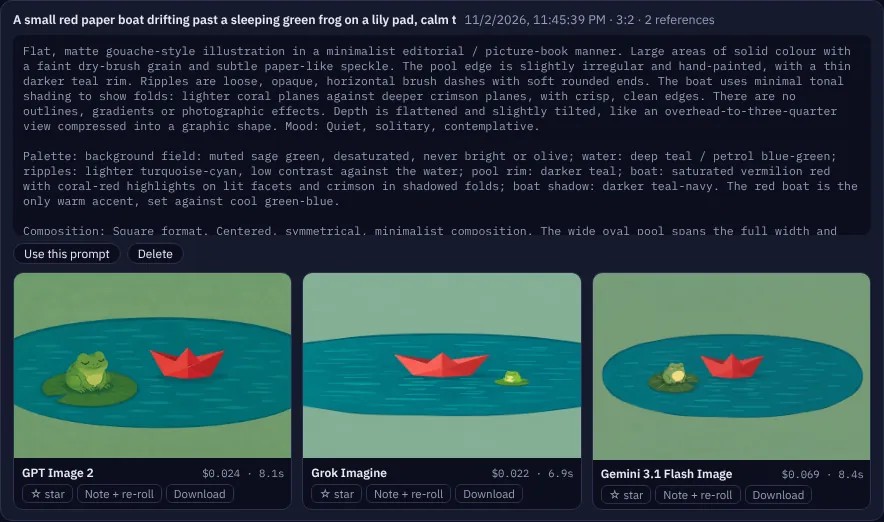
ColliderIterate
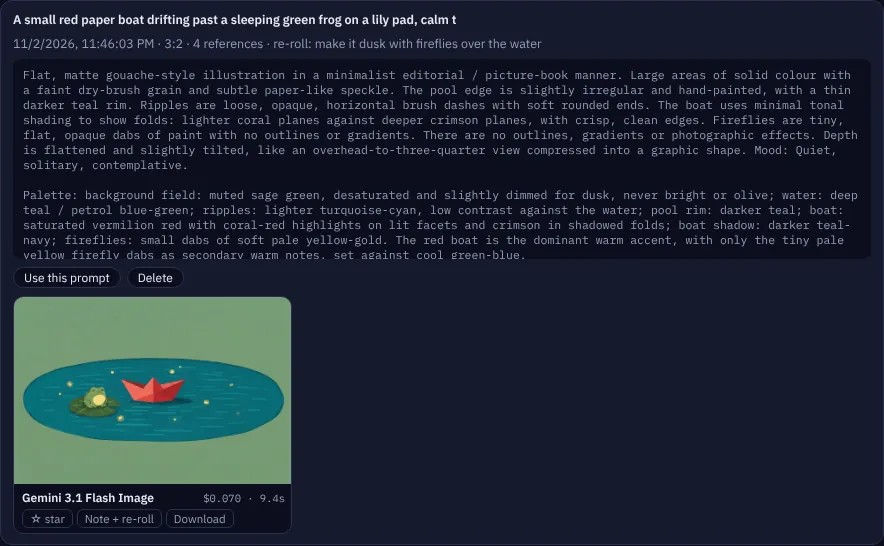
- Click a render to see it large, with the prompt it used (and the model's own rewrite of the prompt, when it made one).
- ☆ star marks a near-miss. Starred renders are sent as references with your next renders.
- Note + re-roll: write what to change. A text model rewrites the prompt with your note. Tick Keep what worked to send this render as a reference, and choose to re-roll this model only or every picked model.
- Download saves the image; Try again appears on a render that failed.
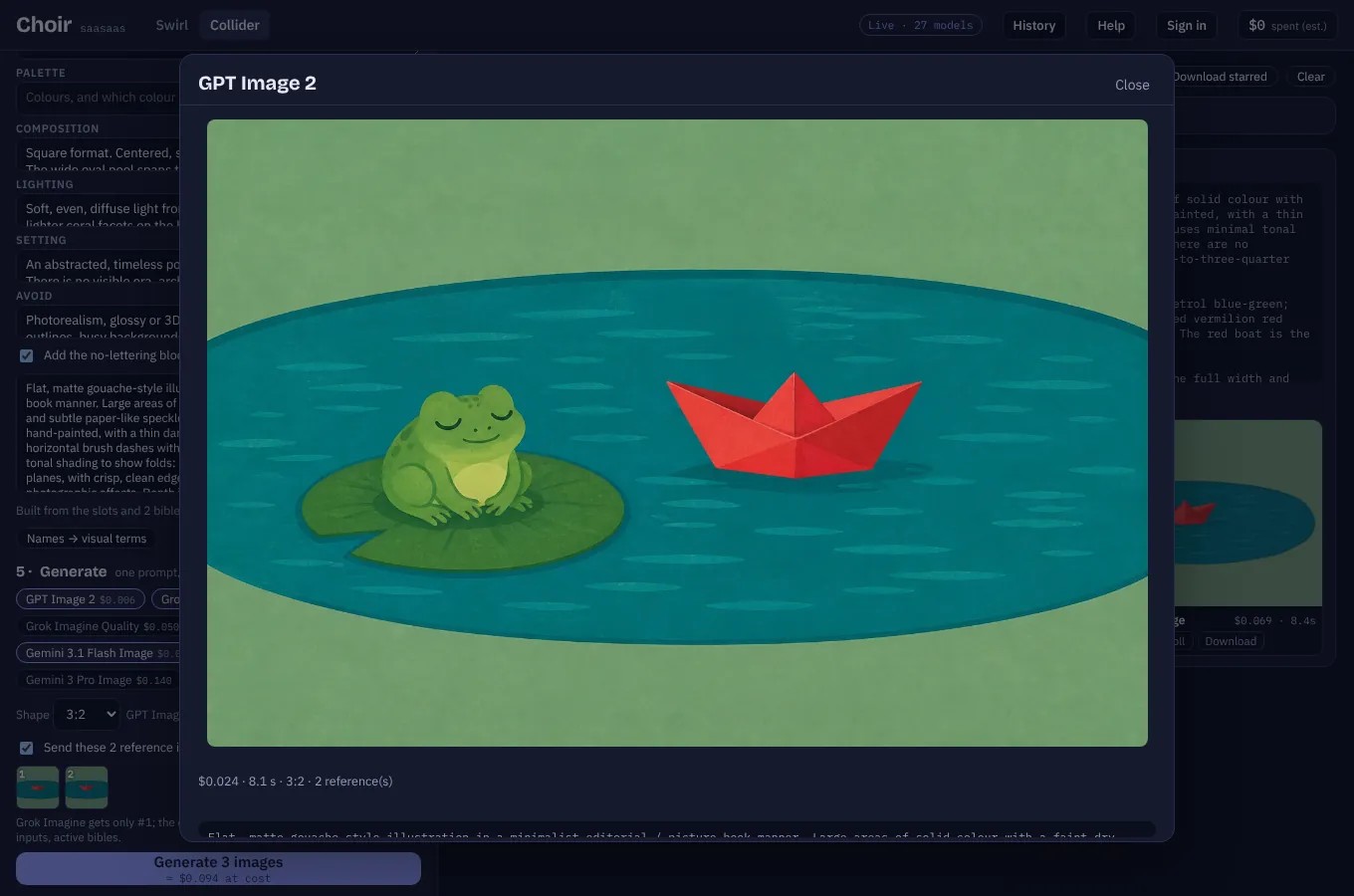
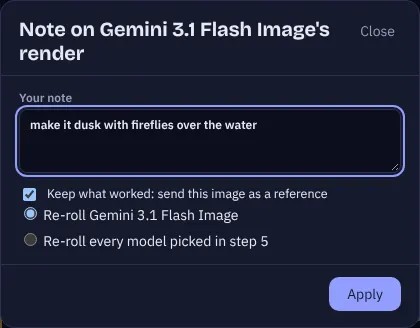
ColliderExport and import

- Export session saves one JSON file with your slots, prompt, bibles, input images and every render (images included). Import loads it back, here or in another browser.
- Download starred saves every starred render as an image file.
- Clear (click twice) deletes all render rows from this browser. Bibles stay.
ColliderTips
- To compare models, hold the prompt still; to compare styles, hold the subject still. Change one thing per round.
- Attach, don't describe. A style bible with two or three reference plates beats a paragraph about the style.
- Describe a group member by member, in order. “A crowd” gets you a crowd. For a reference sheet, say “two full standing figures side by side, with a head study beside each”.
- Ages and features: name the physical markers (“crow's feet, grey at the temples”) rather than a number.
- Lettering: leave the no-lettering block on unless lettering is the point; then put the exact words in quotes in the subject.
- Refusals usually come from names of studios, franchises or living artists: run Names → visual terms.
AccountCredits and buying
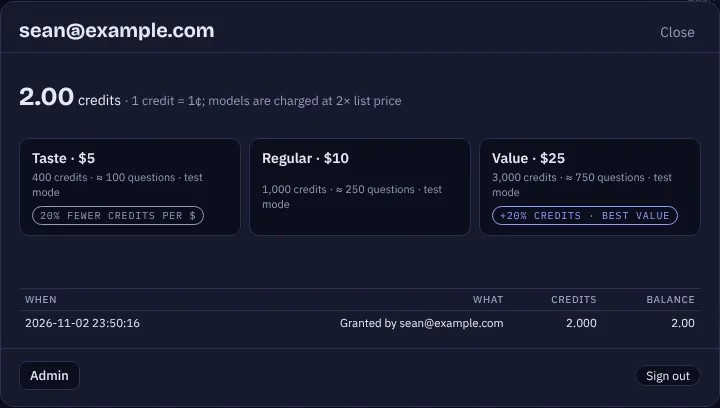
A credit is the unit Choir charges in: one credit pays for 1¢ of model use at public list price, and models are charged at twice list price (the hosted version's margin; the Mac app with your own keys has none). Charges happen per answer, judge pass and image, as they finish. Click your name in the top bar for your balance, packs and recent activity.
Reservations
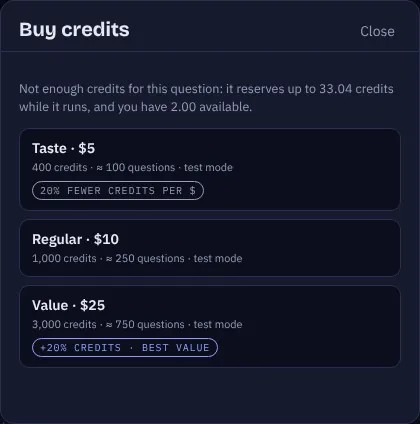
Before a question starts, Choir reserves its worst case: every model reading your prompt, context and files and writing a long answer, plus the judge. The reservation is released when the answers settle, and you're charged only what was used. If you don't have enough for the reservation, nothing is sent and the buy dialog says exactly how much is needed. Images reserve their worst case the same way.
Buying a pack
- Pick a pack. What a credit costs you depends on the pack: Taste $5 for 400 credits (1.25¢ each), Regular $10 for 1,000 (1¢ each) and Value $25 for 3,000 (about 0.83¢ each, 20% more credits per dollar).
- Pay on Stripe's checkout page.
- You come back to the Swirl and the credits are added; Stripe's confirmation also arrives separately, so they're added even if you close the tab.
A refund removes the refunded credits. The question counts on each pack are rough: a typical question on the Frontier panel costs a few credits.
AccountWhere your data goes
Everything Choir sends anywhere, in one table.
| What | Goes to | Kept where |
|---|---|---|
| Your question, carried context and attached files | Each model in Who answers, through its provider | Your browser's history; Choir's server passes it through and doesn't store it |
| The question and every answer, for judging | The judge you picked, or automatically Claude Sonnet 5.5, then GPT-5.5, Gemini 3.5 Flash Lite, Grok 4.7 and DeepSeek Chat, in that order, until one succeeds. The judge's name is shown on every result | Your browser |
| Your prompt, for Apply a note, Names → visual terms and note re-rolls (Collider) | A rewriting model: Claude Sonnet 5.5, or GPT-5.5 or Claude Haiku 5.5 if that's unavailable | Your browser |
| Collider input images, for Break it down | The vision models you pick in step 2 | Your browser |
| Image prompts and reference images | The image models you pick (Gemini images go through OpenRouter) | Your browser; the server never keeps an image |
| Profiles | Your account, when you're signed in | Your browser and your account |
| Email, password (hashed), credits and charges | Choir's database; each charge names the model, not your question | Your account |
| Downloads of the Mac app | Choir's database: which account downloaded which version, when, and from which country, so we can reach you if a build needs fixing | Your account |
| Payments | Stripe, with your account email; Choir never sees your card | Stripe |
| Page views | Choir's page-view counter: path, referring page, country | The counter (opt out below) |
History, Collider renders, bibles and inputs live only in the browser you used. Signing in elsewhere won't bring them along: export them (History → Export all; Collider → Export session) and import them there.
AccountCosts, troubleshooting
- What does a question cost?
- It depends on the models and how long they write. A short question to the Frontier panel is a few cents at list price; Quick & cheap is a fraction of a cent. The Ask button shows the likely charge and the hold before you ask, the wizard estimates per question, and Metrics shows what each turn actually cost.
- Where are my keys, history and images?
- See Where your data goes: keys stay on the server; history, renders and bibles stay in your browser; profiles sync to your account.
- Do you track me?
- Only page views: each page load records its path, the referring page, the site and your country, with no cookies and nothing you type. To opt out, run
localStorage.smsNoTrack = 1in your browser's console on this site. - A model shows an error instead of an answer.
- The provider refused, timed out or hit a limit (for example “HTTP 429: quota exceeded”). The rest of the question carries on and the failed model isn't charged. Try again later, or turn that model off.
- A model said it can't see my image.
- That model doesn't take images, so it was told an image was attached. The wizard's Sees images filter shows which do.
- “Not enough credits for this question.”
- The question's worst case is more than you have available. Buy a pack, ask fewer or cheaper models, or carry less context.
- An image render failed or came back empty.
- Press Try again. A refusal says so; rephrase it or run Names → visual terms. You're not charged for failures.
- Can I run Choir myself?
- Yes. The Choir macOS app runs the same multi-model comparisons with your own API keys, free. Members can download it from the home page.